
Blog · Keeping photos safe
How to scan old printed photographs with your phone
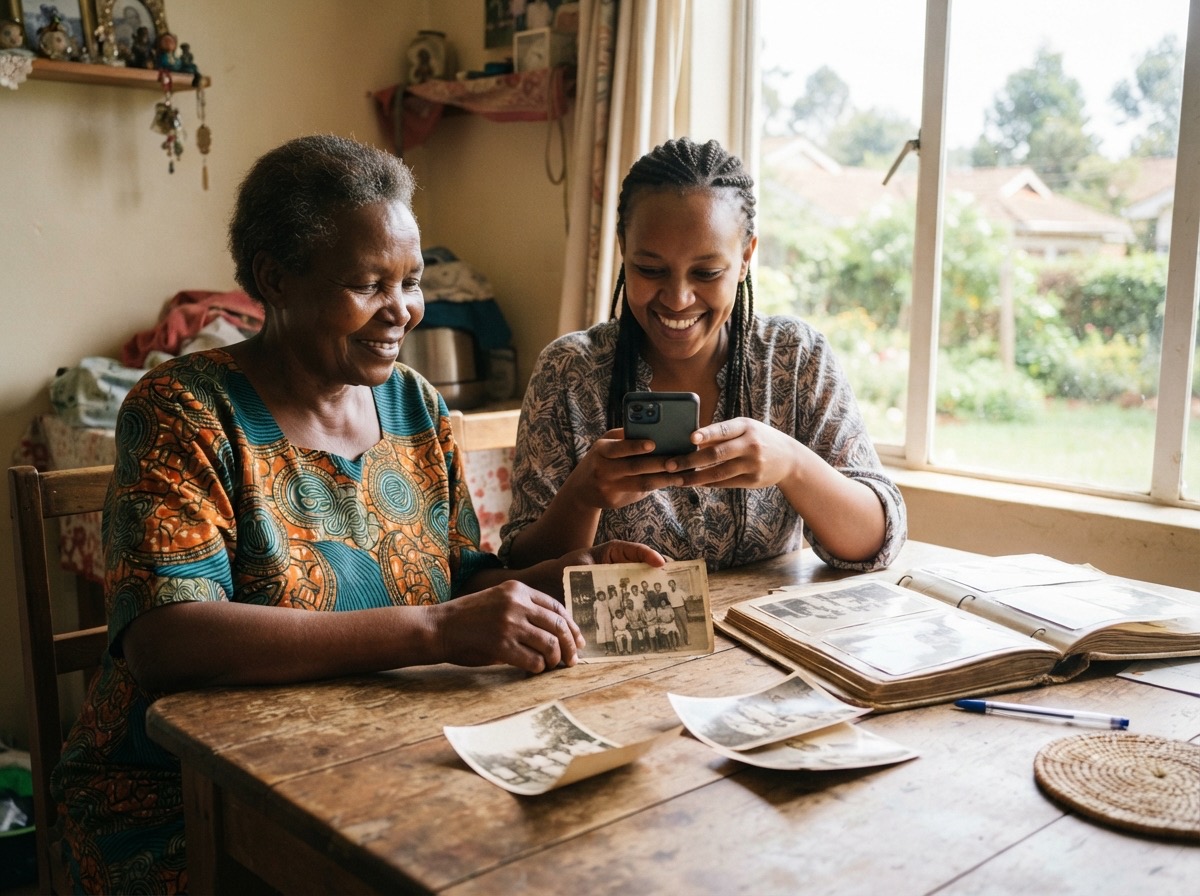
Somewhere in your family there is a shoebox, a suitcase or a heavy old album full of printed photographs. Grandfather in his first suit. Your mother at school. A wedding nobody alive can describe any more. Paper fades, curls, gets damp and gets eaten by insects. The good news is that you do not need a scanner or a shop to save them. Your phone can do it.
Before you start: what you need
- A smartphone with a working camera. Clean the lens with a soft cloth first, because a thumbprint on the lens makes every photograph hazy.
- Daylight. A table next to a window is perfect.
- A flat, plain surface, such as a table with a plain cloth or a sheet of white or black paper on it.
- About an hour for your first twenty photographs, including the time to look at them and remember.
You do not need to buy anything.
Step 1: Handle the prints gently
Old photographs are fragile. Wash and dry your hands first, because oil from fingers stays on the paper.
- Hold each print by its edges.
- Do not peel photographs out of an old album if they are stuck. Photograph the whole page instead and look at the pictures closely later.
- Never write on the front. If you must write on the back, use a soft pencil, not a pen, and press lightly.
- Do not use sticky tape to repair a tear. Tape leaves a stain that cannot be removed.
Step 2: Set up the light
Light decides whether your copy looks sharp or ruined.
- Sit beside a window so the daylight comes from the side, not from behind your phone.
- Do not use the flash. Flash bounces off glossy paper and leaves a white blotch.
- Avoid your own shadow falling across the picture. Move until it is gone.
- Do not work in strong, direct sun. Bright daylight in the shade near a window is best.
Step 3: Take the picture
- Lay the print flat on the plain surface. If it keeps curling, rest a clean book or a sheet of glass lightly on its edges.
- Hold your phone directly above the photograph, parallel to it, as if the phone and the photo are two sheets of paper facing each other. A tilted phone makes the picture look like a trapezium.
- Fill the screen with the photograph, but leave a small border so you do not cut off the edges.
- Tap the photograph on your screen so the camera focuses on it.
- Hold your breath, keep still, and take the picture. Lean your elbows on the table to steady your hands.
- Look at the result. If a corner is blurry or there is a glare, take it again.
Take the back of the photograph too, whenever there is writing on it. A date or a name written on the back is often the most valuable thing in the whole picture.
Step 4: Use a scanning app, if you like
A normal photograph from your camera is already good enough for a family record. But a scanning app can straighten and crop the picture for you and reduce glare. Free apps such as Google PhotoScan do this, and your phone may have a built-in "scan document" option in its camera or notes app too. Try one, compare the result with your plain camera photograph, and keep whichever looks better. If you are unsure, keep both.
Step 5: Fix it gently, or not at all
Most phones let you crop and brighten a picture. Straighten it and crop any table around the edges, but be careful with the other buttons. Heavy "enhance" filters can make faces look strange, and you cannot go back to how the old picture really looked. A good rule: keep the untouched copy, and only then, if you want, make a brighter one.
Step 6: Name the files before you forget
This is the step almost everyone skips, and it is the one you will thank yourself for. Right after you scan a photograph, write down what you know:
- Who is in it, from left to right, with first and last names.
- Where it was taken.
- When, even if it is only "about 1975" or "before Baraka was born".
- Why: what was happening that day.
If an older relative is sitting with you, ask them now. The best time to name the people in a photograph is while someone still remembers. You can read more on the questions to ask in 50 questions to ask your grandparents about their life.
Step 7: Back up what you have made
Your scans now live on your phone, which is exactly the problem you were trying to solve with the paper. Copy them to a second place the same day. The simple plan in how to back up the photos on your phone works for scans just as well: an online backup, plus a copy on a hard drive or flash disk that you own.
What to do with the paper
Keep the originals. A scan is a copy, and a good print is still the best record of itself. Put them in an envelope or an acid-free sleeve if you can get one, or even in clean paper envelopes, and store them in a cool, dry cupboard. Keep them away from the bathroom, the kitchen and the floor, and out of direct sun. Write the year and the family name lightly in pencil on the envelope, not on the photograph.
Common problems and quick fixes
- White blotch on the picture: the print is glossy and the light is bouncing off it. Move away from the window slightly, or turn the photograph a little, and try again.
- Picture looks tilted: your phone was not parallel to the table. Hold it level and shoot again, or straighten it in the editor.
- Faint, faded print: do not over-brighten it. Keep the plain copy and make a brighter one later.
- Photograph in a plastic sleeve: shoot it as it is first, then out of the sleeve if it is safe to take out.
A small plan for a big pile
With hundreds of photographs, do not try to finish in one afternoon. Choose one sitting a week, scan ten to twenty photographs, name them and back them up. In three months a shoebox becomes a complete record. Ask a cousin or a child to help, and write down the stories an older relative tells while you work.
Check your list
- Clean lens, daylight, no flash
- Phone held flat above the print, back taken too
- Names, place and year noted right away
- Copies saved in two places, originals kept dry
Scanning is the first half of saving a family's pictures. The second half is putting them somewhere your relatives can look at them together, with the names beside them. That is what Album is for: a private family album with a family tree, photographs, stories and a timeline, and you can look around the demo album to see how it works.