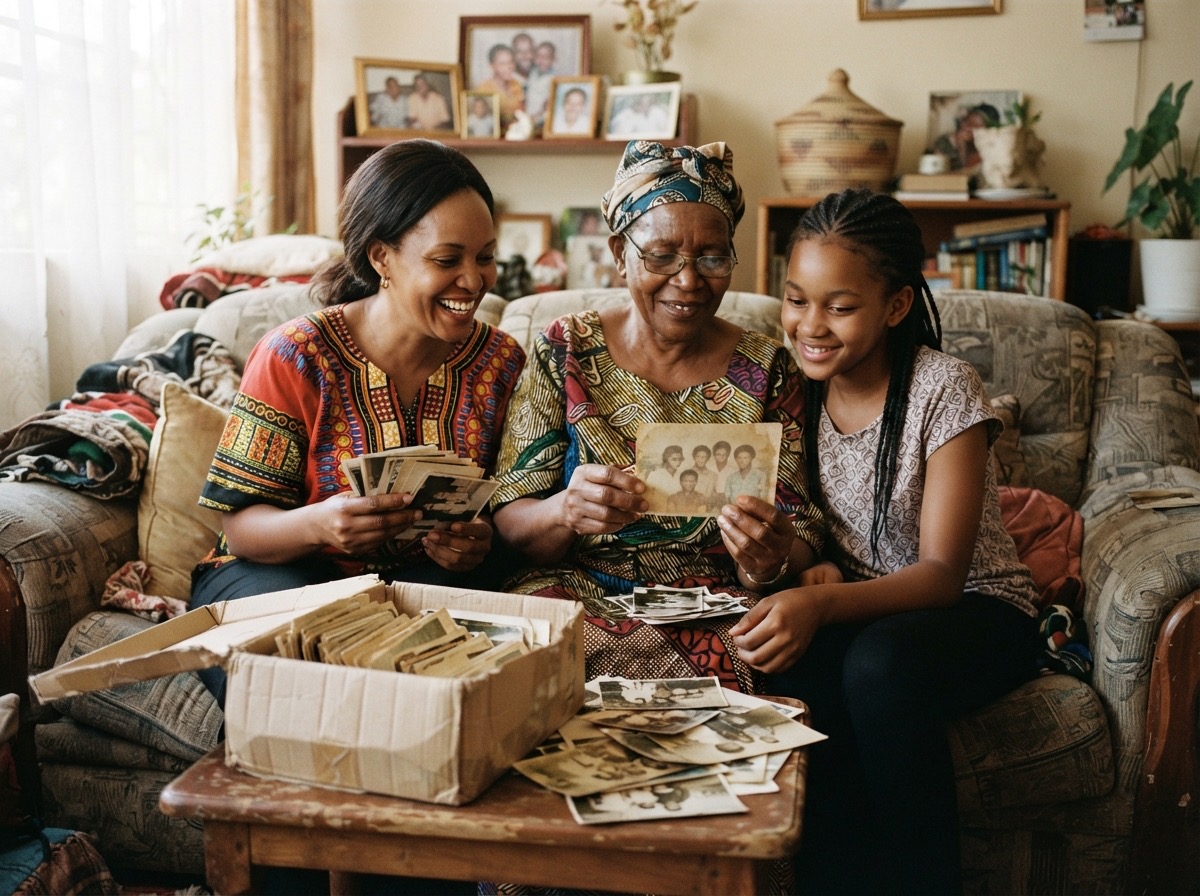
How to turn your family WhatsApp group photos into an album
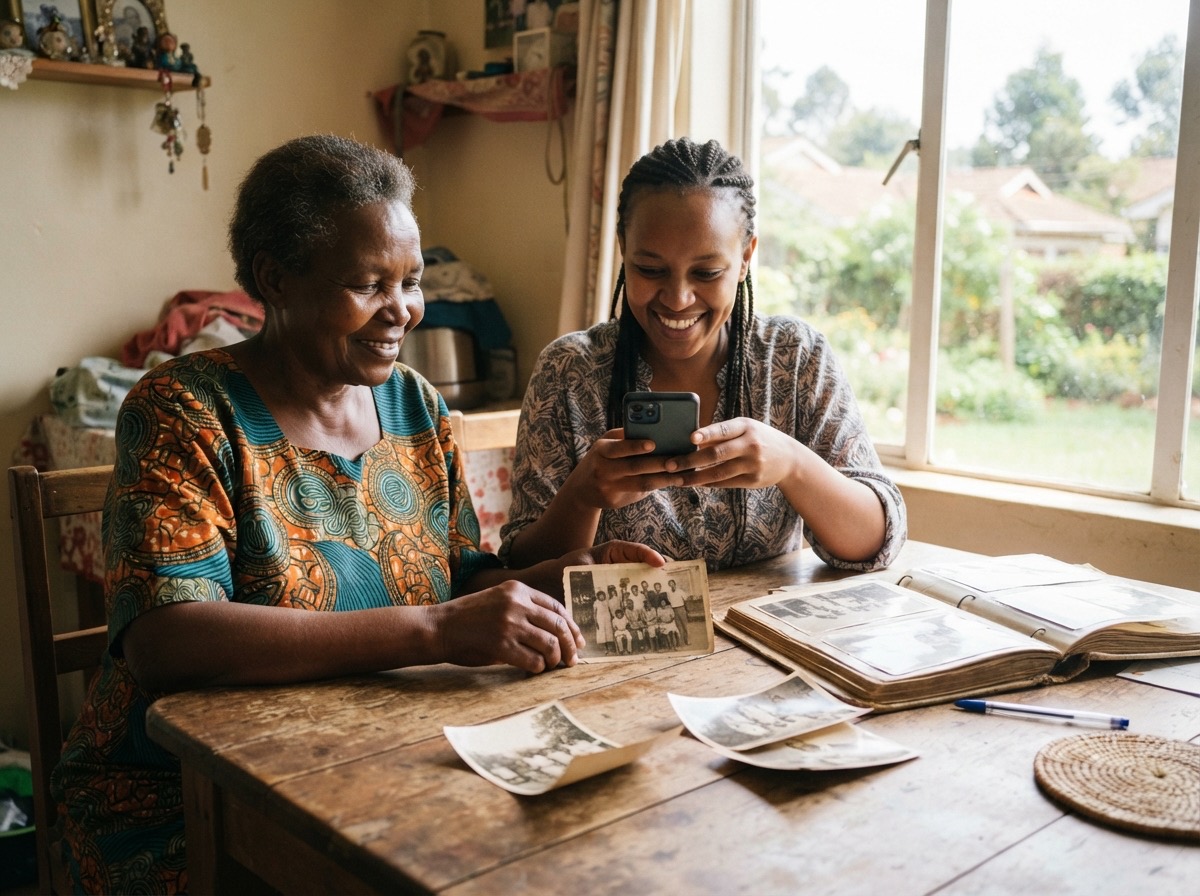
In this guide
Why a chat is a poor place for family photosStep 1: Decide what you are rescuingStep 2: Make sure the photos reach your phone's galleryStep 3: Ask for the best copiesStep 4: Put them in one albumStep 5: Name the people while you rememberStep 6: Invite the family inVideos are differentA short checklistThink of your family WhatsApp group. Somewhere in it are the photographs from the wedding, the pictures from Christmas in the village, the new baby, the day Grandmother turned eighty. They were shared with joy, and then buried under "Good morning" messages, forwarded jokes and a thousand other things.
Then someone changes phone, or leaves the group, or clears their storage to make room. And the photographs are gone. This guide shows you how to rescue them and give them a proper home.
Why a chat is a poor place for family photos
WhatsApp is wonderful for sharing. It is not made for keeping.
- Photos get smaller. WhatsApp shrinks pictures when they are sent, so what you receive is a lighter copy of the original.
- Details are removed. Most messaging apps strip out the date and place that a phone writes into a photograph.
- Nobody can find anything. There are no names, no captions and no way to ask "show me everything from 2019".
- It lives on phones. If your phone is lost, or you clear space, the pictures can go with it.
- One person's phone is the archive. If that person leaves the group, the memories leave with them.
Step 1: Decide what you are rescuing
Do not try to save everything. Start with a clear target, such as "all the photographs from family events" or "everything from the last three years".
- Pick one group, the main family one.
- Write down the big events in it: weddings, funerals, reunions, births, graduations.
- Choose one cousin or sibling to be the "keeper" who will do the gathering.
Step 2: Make sure the photos reach your phone's gallery
Check your WhatsApp settings first. In Settings, open Storage and data (Android) or Chats (iPhone) and look for the setting that saves received photos to your gallery. Switch it on.
Photos already in the chat can be saved one at a time, or in groups. Open the group, tap its name at the top, and open Media, links and docs. Press and hold one photograph, tap others to select them, then choose the option to save them or share them to your gallery. The exact words differ between phones and WhatsApp versions, so look for the save button on your screen.
Step 3: Ask for the best copies
The pictures in the chat are the shrunken ones. If a relative took the photograph, they still have the original on their phone.
- Ask them to send it again as a document (in WhatsApp, tap the paperclip, then Document, and choose the photo). This sends the file without squeezing it.
- Or ask them to share it by email or a cloud folder.
You will not do this for every picture. Do it for the ones that matter most: the best group photograph, the portrait of an elder, the last picture of someone you have lost.
Step 4: Put them in one album
Now give them a home. In Album, press the Photos button at the bottom right of the screen, then drag your photographs in or press Browse Files. If your pictures are in Google Photos, you can press Import from Google Photos in the same upload box and choose the ones you want.
Before you press Upload All, you can set these for the whole batch:
- a caption, such as "Amani and Neema's wedding, Nakuru";
- the date, which you should fill in for WhatsApp photos, because the date inside the file is usually gone;
- a category;
- who is in the photographs. Type a name that is new and that person is added to the family tree for you;
- who can see them: everyone, contributors and above, or owners only.
A photograph can be up to 50 MB, and pictures saved from WhatsApp are small, so many of them fit. Upload one event at a time. It takes a few minutes and keeps your captions accurate.
Step 5: Name the people while you remember
This is the step that turns a pile of pictures into a family record. In a WhatsApp group, nobody writes down who is who, because everyone "just knows". In twenty years, nobody will.
- Open the album with an elder if you can, and ask them to point.
- Add names to each photograph: first name, and a short note if it helps ("Uncle Juma, standing").
- Add the place where a photograph was taken. Because WhatsApp removes the place, open the photograph, type the place and choose it from the list.
For more on this, see how to scan old printed photographs with your phone, which covers the same naming habits for paper prints.
Step 6: Invite the family in
An album that only you can see is just another phone. Add your relatives as members so they can look, and, if you wish, add photographs of their own. Album has roles, so you decide who may only view, who may contribute, and who is an owner. Nobody needs a password; people sign in with a code sent to their email.
Then, in the WhatsApp group, send one message: "The photographs are now in our family album. Add yours here." From then on, the group is for chat and the album is for keeping.
Videos are different
Family videos are heavy, and they do not go into the photo upload. In Album you add a video by putting it on YouTube as Unlisted and adding its link on the Videos tab. Unlisted means only people with the link can watch it.
A short checklist
- Pick one group and one keeper.
- Switch on saving to the gallery.
- Save the photographs from the main events first.
- Ask for the original of the ones that matter most.
- Upload one event at a time, with a caption and a date.
- Name the people, with an elder beside you.
- Invite the family and tell the group where to add pictures.
Do the first event this week. A single wedding, named and dated, is worth more than ten thousand unnamed pictures.
If you want a private place for all of it, with a family tree, stories and photographs together on your own .ke name, you can try Album and look around the demo album first.